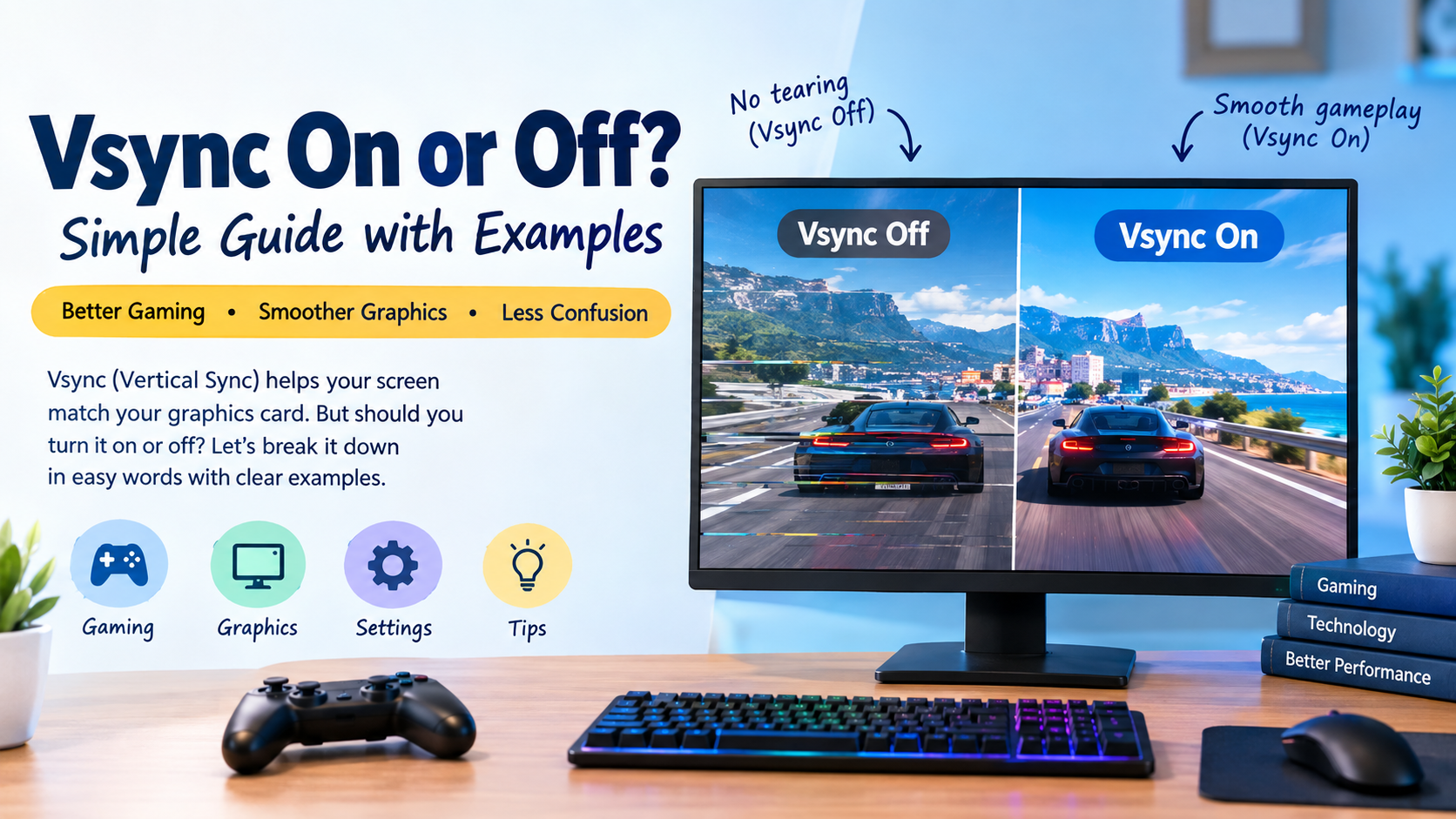
When you open a new game, you may notice a setting called VSync. It is often found in the graphics or display settings of PC games. Many players see two choices: VSync On or Off. But which one should you choose?
VSync can change how smoothly a game looks on your screen. It can help remove screen tearing, but it may also add a little input delay in some situations. With VSync turned off, you may get higher frame rates and faster response, but screen tearing can appear.
This is why gamers often search for VSync on or off before changing their graphics settings. The best choice depends on your monitor, refresh rate, graphics card, game, and whether you use technologies such as G-SYNC or FreeSync.
You may see VSync in PC games, gaming laptops, graphics control panels, and some console games. It is especially useful to understand when you are trying to balance smooth visuals and quick controls.
Knowing what VSync does can help you choose the right setting instead of simply turning it on or off without understanding the result. In this guide, you’ll learn the meaning, examples, usage, differences, common mistakes, and simple explanations in easy English.
VSync On or Off – Quick Answer
👉 VSync = A graphics setting that synchronizes your game’s frame output with your monitor’s refresh rate to reduce screen tearing.
VSync On
When VSync is On, the game tries to match its frame output with the monitor’s refresh rate.
For example, if your monitor runs at 60Hz, VSync may limit the game to around 60 FPS when the system can maintain that level.
Example:
Your monitor is 60Hz and your game is producing 100 FPS. VSync can synchronize the output to reduce tearing.
VSync Off
When VSync is Off, the GPU can send frames without waiting for the monitor’s refresh cycle.
This can provide higher FPS and lower latency, but you may notice screen tearing.
Example:
Your game produces 140 FPS on a 60Hz display. With VSync off, parts of different frames may appear together.
Simple rule
👉 VSync On = smoother image with less tearing.
👉 VSync Off = faster response and potentially higher FPS, but tearing may appear.
The Origin of VSync
VSync is short for Vertical Synchronization.
The term comes from the way displays refresh their images. A monitor updates the picture repeatedly, based on its refresh rate. Older displays and early computer graphics systems could show visible tearing when the game and display were not synchronized.
Screen tearing happens when the display starts showing a new frame before the previous frame has completely finished. This can create a visible horizontal split in the picture.
VSync was developed as a way to synchronize frame delivery with the display’s refresh cycle.
As PC gaming became more advanced, VSync became a common graphics option. Today, gamers may also use newer technologies such as NVIDIA G-SYNC and AMD FreeSync, which can provide adaptive synchronization.

British English vs American English Usage
VSync is a technology term, not a British or American English spelling difference.
The abbreviation Frame Sync is used in both British and American English. The full term, vertical synchronization, also has the same meaning in both forms of English.
| Feature | British English | American English | Notes |
|---|---|---|---|
| VSync | VSync | VSync | Same |
| Vertical synchronization | Vertical synchronization | Vertical synchronization | Same technical term |
| Screen tearing | Screen tearing | Screen tearing | Same |
| Frame rate | Frame rate | Frame rate | Same |
| Refresh rate | Refresh rate | Refresh rate | Same |
So, there is no British vs American difference when discussing Frame Sync on or off.
Which One Should You Use?
There is no single setting that is best for every gamer. Your choice depends on what matters most to you.
Choose VSync On when:
- You notice obvious screen tearing.
- You prefer a clean and stable image.
- You are playing slower games.
- You do not need the lowest possible input latency.
- Your GPU can comfortably maintain your display’s refresh rate.
Choose VSync Off when:
- You want the lowest possible input latency.
- You play competitive games.
- You want your GPU to render as many frames as possible.
- Screen tearing does not bother you.
- You are testing your system’s maximum performance.
What about G-SYNC or FreeSync?
If your monitor supports G-SYNC, G-SYNC Compatible, or FreeSync, the answer can be different.
These technologies are designed to adjust the monitor’s refresh behavior to match the GPU’s frame rate within their supported range. This can reduce tearing and stutter while keeping the experience responsive.
For many modern gaming setups, adaptive sync is often a better solution than relying on traditional Frame Sync alone.
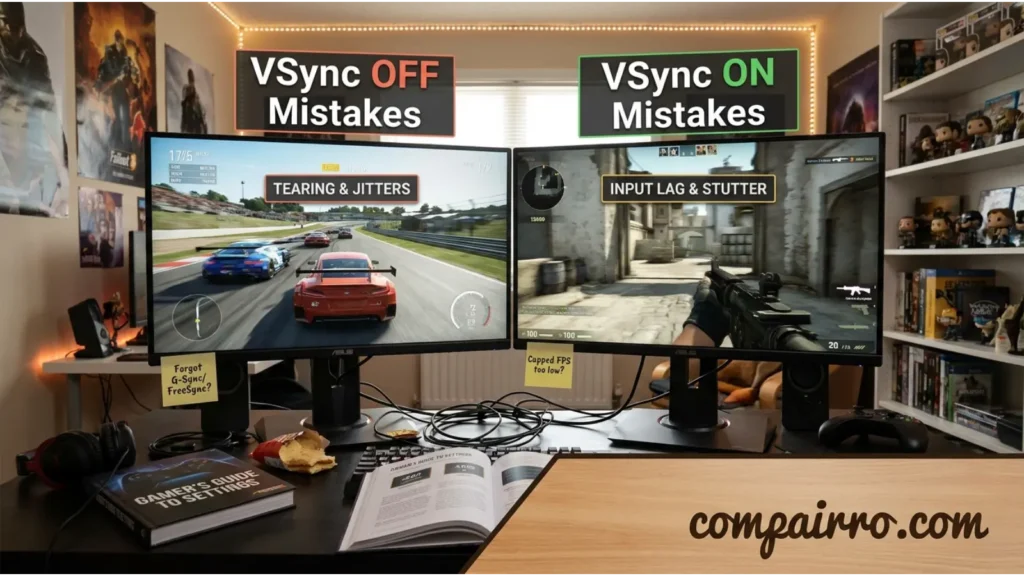
Common Mistakes With VSync On or Off
Mistake 1: Thinking VSync increases FPS
❌ “Turning VSync on will increase my FPS.”
✔ VSync is mainly used to synchronize frame output with the display. It does not normally increase your game’s performance.
In many cases, it limits the displayed frame rate to the monitor’s refresh rate.
Mistake 2: Thinking VSync removes all lag
❌ “VSync makes the game more responsive.”
✔ VSync can improve visual smoothness, but traditional VSync can sometimes increase input latency.
This is especially noticeable in fast competitive games.
Mistake 3: Assuming VSync is always bad
❌ “Every gamer should turn VSync off.”
✔ Not necessarily.
If screen tearing is distracting, VSync can make the image look much cleaner.
Mistake 4: Confusing FPS with refresh rate
❌ “My monitor is 144Hz, so my game must always run at 144 FPS.”
✔ A 144Hz monitor can refresh up to 144 times per second, but your actual game FPS depends on your hardware and game settings.
Mistake 5: Ignoring adaptive sync
❌ “I only have two choices: VSync on or VSync off.”
✔ Modern gaming monitors may support FreeSync or G-SYNC. These technologies can change which setup works best for you.
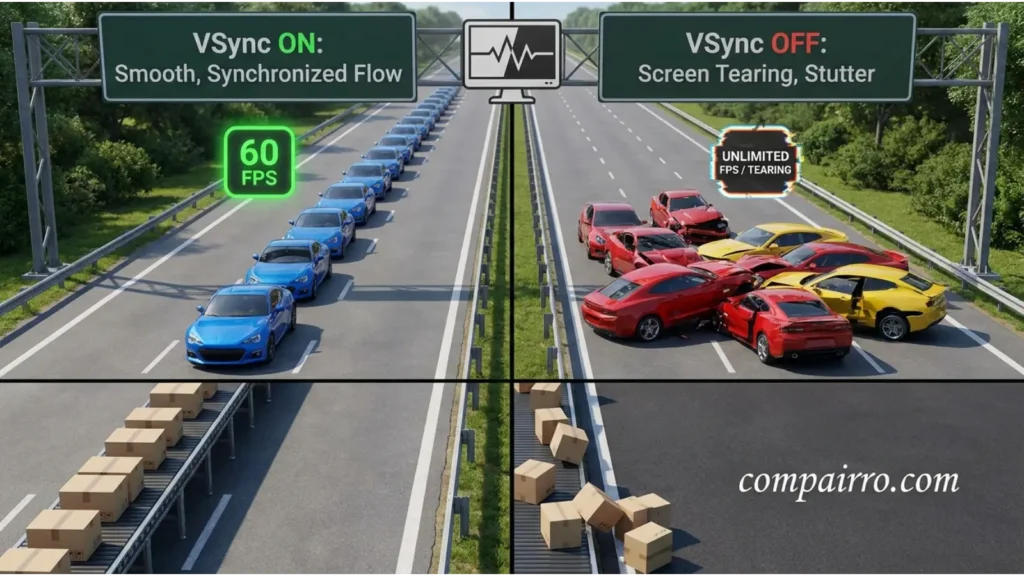
VSync On or Off in Everyday Examples
Work and General Computer Use
Frame Sync is mainly a gaming and graphics setting, so it is not usually important for normal tasks such as writing documents, browsing websites, or checking email.
You normally do not need to think about Frame Sync during everyday computer use.
School
Students may encounter Frame Sync while playing games on a school or personal computer.
For example, if a game looks like the picture is breaking into horizontal sections, Frame Sync may help reduce that effect.
Social Media
Gaming creators often discuss VSync on or off when sharing PC optimization tips.
You may also see videos comparing FPS, input delay, screen tearing, and graphics settings.
Daily Life
If you play a game after school or work, you may notice that the game looks different after changing VSync.
Turning it on may make the picture cleaner, while turning it off may make controls feel more immediate.
Text Messages
Gamers may write:
“Should I use VSync on or off?”
Or:
“Turn VSync off if you want lower latency.”
These are common ways to discuss the setting.
VSync On or Off – Google Trends & Usage Data
People search for VSync on or off because they want a quick answer to a common gaming problem.
The question usually appears when a player notices one of these issues:
- Screen tearing
- Stuttering
- Input delay
- Low FPS
- Unstable frame rates
- Poor gaming performance
- Confusion about graphics settings
Search interest can also increase when people buy new monitors, upgrade graphics cards, or start playing demanding games.
Gamers in the United States, United Kingdom, India, Pakistan, Canada, and Australia may all search for Frame Sync guides. The technology is global, so the basic question remains the same.
However, search results can vary based on the game, GPU, monitor, and synchronization technology being used.
A beginner may simply ask, “Frame Sync on or off?” A more experienced player may search for terms such as VSync vs G-SYNC, Frame Sync input lag, or Frame Sync with FreeSync.
Comparison Table: VSync On or Off
| Feature | VSync On | VSync Off |
|---|---|---|
| Screen tearing | Usually reduced | Can occur |
| FPS | Usually limited by synchronization | Can go higher |
| Input latency | May be higher | Usually lower |
| Image stability | Better when synchronization works well | Can be less stable |
| Competitive gaming | Not always preferred | Often preferred for lowest latency |
| Casual gaming | Often useful | Also works if tearing is acceptable |
| GPU workload | May be reduced | Can be higher |
| Best for | Clean, tear-free visuals | Fast response and maximum FPS |
| Adaptive sync | Depends on setup | Depends on setup |
The best setting depends on your complete gaming setup rather than the Frame Sync option alone.
VSync On or Off in Professional Life
VSync is not normally a workplace setting. However, it can matter for people who work in gaming, game development, graphics, video production, or computer testing.
Game developers may test Frame Sync to see how a game behaves at different refresh rates and frame rates.
For professional graphics testing, developers may compare:
- Frame pacing
- FPS
- Input latency
- Screen tearing
- Refresh rates
- Adaptive sync behavior
For most office workers, however, Frame Sync does not need regular attention.
VSync On or Off for Students or Beginners
Beginners often struggle with Frame Sync because several different terms are used together.
You may see FPS, Hz, VSync, FreeSync, and G-SYNC in the same settings menu.
Here is the simple way to understand them:
- FPS: How many frames the game produces each second.
- Hz: How many times the monitor refreshes each second.
- Frame Sync: Tries to synchronize frame output with the display.
- FreeSync: AMD’s adaptive synchronization technology.
- G-SYNC: NVIDIA’s adaptive synchronization technology.
Easy learning tips
- Check your monitor’s refresh rate.
- Look for screen tearing while playing.
- Test VSync on and off.
- Notice how responsive the controls feel.
- If your monitor supports adaptive sync, learn how it works.
- Do not judge performance by FPS alone.
Signs or Characteristics Related to VSync On or Off
Signs VSync may help
- You can clearly see horizontal tearing.
- The game feels visually unstable.
- You prefer clean images over maximum FPS.
- Your frame rate is comfortably around your monitor’s refresh rate.
Features VSync Off may be better
- You notice extra input delay.
- You play fast competitive games.
- You want the lowest possible latency.
- You do not mind occasional tearing.
- You want to test higher frame rates.
Signs you may need another solution
- FPS changes frequently.
- You have a FreeSync or G-SYNC monitor.
- The game stutters even with VSync.
- Your FPS is often below your monitor’s refresh rate.
- You are using a high-refresh-rate display.
In these situations, adaptive sync, frame-rate limits, graphics settings, or other game-specific options may provide a better result.
Simple Trick to Remember VSync On or Off
Think of it this way:
👉 VSync ON = Clean picture
👉 VSync OFF = Fast response
This is not a perfect rule for every modern setup, but it is an easy starting point.
Think of it this way:
Imagine your monitor and GPU are two people trying to speak at the same time.
VSync On tells them to stay synchronized.
VSync Off lets the GPU send frames whenever they are ready.
So remember:
Tearing bothers you → Try VSync On.
Input delay bothers you → Try VSync Off.
You have FreeSync/G-SYNC → Consider adaptive sync settings too.
FAQs:
1. Is VSync better on or off?
It depends on your needs. VSync On is useful for reducing screen tearing, while VSync Off can provide lower input latency and higher FPS.
2. Does VSync reduce FPS?
It can limit the frame rate to match the monitor’s refresh rate, so your displayed FPS may be lower than what the GPU could produce.
3. Does VSync cause input lag?
Traditional VSync can add some input latency, especially when the game is waiting for the display’s refresh cycle.
4. Should I use VSync for competitive gaming?
Many competitive players prefer VSync Off because low input latency is important. However, the best choice depends on the game and your monitor setup.
5. Should I turn VSync on for a 144Hz monitor?
You can if screen tearing bothers you. If you use FreeSync or G-SYNC, adaptive synchronization may offer a better solution.
6. Does VSync improve graphics quality?
VSync does not make textures or resolution better. Its main purpose is to synchronize frame output and reduce screen tearing.
7. What is better: VSync or FreeSync/G-SYNC?
For a compatible modern monitor, adaptive sync technologies such as FreeSync or G-SYNC can provide smoother results across changing frame rates. The ideal setup depends on your hardware and game.
Conclusion
The choice between VSync on or off depends on what you want from your gaming experience.
VSync On is a good option when screen tearing bothers you and you want a cleaner, more stable picture. Frame Sync Off can be better when you want lower input latency and higher frame rates, especially in competitive games.
There is no universal setting that is perfect for every player. Your monitor’s refresh rate, GPU performance, game, and adaptive sync support all matter.
The easiest memory rule is:
👉 VSync On = less tearing.
👉 VSync Off = potentially lower latency and higher FPS.
If your monitor supports FreeSync or G-SYNC, check those settings too. They may give you a better balance between smooth visuals and responsive gameplay.

Sara Taylor is a passionate English content writer who specializes in word meanings, spelling comparisons, and modern slang explanations. She creates easy-to-understand articles that help readers avoid common English mistakes and improve their writing skills. Her content focuses on simple learning, real-life examples, and clear explanations for everyday readers.